

When you start building an anime character or scene, the model is only one part of the setup. You might also need a LoRA to introduce a particular character or visual feature, or a reference image to help preserve an existing design. Choosing between them depends on what you want the generator to control.
A model shapes the broader look and behavior of the image. A LoRA gives you more targeted control, while a reference image gives the generator a visual example to follow. They can also work together when a project needs more control than any one of them can provide.
In this guide, we’ll look at what each one does, how to choose the right option for your project, and when it makes sense to combine them. We’ll use practical examples in PixAI to see how these choices affect the final artwork.
Decide what you need to control first
Before choosing a model, LoRA, or reference image, identify the part of the image you want to control. Are you trying to establish a particular anime style, preserve an existing design, or change one visual element while keeping everything else intact?
That starting point helps narrow down the tools you need. If the model already gives you the style and character you want, adding a LoRA may add unnecessary complexity. If you already have a character design you want to carry into another image, a reference may be more useful than changing models.
What does each one actually control?
Model, LoRA, and reference image can all influence the same finished illustration, but they do different jobs. Understanding that difference makes it easier to decide what to add and what to leave out.
The model sets the foundation
The model influences the overall visual language of the image, including rendering style, anatomy, and how it interprets your prompt. It is the starting point for deciding how you want the image to look and behave.
A LoRA adds targeted control
A LoRA is more specific. It can introduce or strengthen a particular character, style, or visual concept while working on top of a compatible model. This makes it useful when you need control over something the base model doesn’t reliably produce on its own.
A reference image gives the model visual guidance
A reference gives the generator an actual image to work from. Depending on the workflow, it can help communicate a character’s appearance, pose, clothing, composition, or other visual details that may be difficult to describe precisely in a prompt.
You can use them together
These controls don’t have to be used separately. You might choose a model for its overall rendering, add a LoRA for a specific character design, and use a reference to preserve that character’s appearance in a particular scene.
PixAI brings these controls into the same creative workflow, so you can combine a model, a LoRA, and a reference image when a project calls for all three.
How to choose an anime model
The model sets the foundation for everything that follows, so start by looking at the kind of image you want it to produce. It doesn’t have to do everything well, but you need to choose one that suits the style, subject, and level of control your project requires.
This is important because different AI anime models will give you different results even with the same request. For example, let’s use the same photographer prompt with PixAI’s Tsubaki.3 and Haruka v2, respectively.
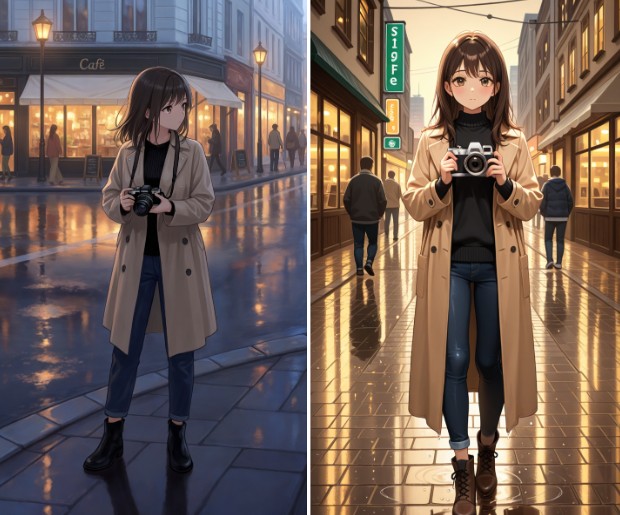
As you can see, the aesthetics are different, from the character to the environment. The difference becomes even more visible when you want a character who is interacting with the environment and other characters because models interpret instructions differently.
Below are the considerations to keep in mind when choosing an AI anime model.
Choose based on the visual style you want
Start with the overall look. Compare the model’s example images and, when possible, generate the same prompt with a few models to see how they handle faces, linework, colors, shading, and backgrounds.
Choose based on how much control you need
If your images depend on precise poses, clothing details, compositions, or other instructions, pay attention to how consistently the model follows your prompts. A model’s general aesthetic may look great in its examples, but that doesn’t tell you how well it will handle details like character interaction.
Choose based on the type of image and project you want to create
Think about the images you’ll be making. A character portrait, a detailed environment, a multi-character scene, and a manga panel can place very different demands on a model. If your project involves several of these, test the models on more than one representative task.
Test the model before building your workflow around it
If you’re deciding between a few models, use the same prompt and relevant settings to compare them. Look at the areas that matter to your project rather than choosing based on the model’s name, popularity, or a single impressive example.
How to choose an anime LoRA
A LoRA is useful when you want to add more specific control to an image without changing the entire foundation provided by your model. The key is to start with the result you want and then find a LoRA that addresses that particular need.
For example, let’s use the prompt we used earlier with Tsubaki.3 model and add a LoRA. PixAI allows users to add up to 15 LoRAs, but we’ll add two to see how it changes the aesthetics. We’ll leave both strengths at a moderate 0.7.
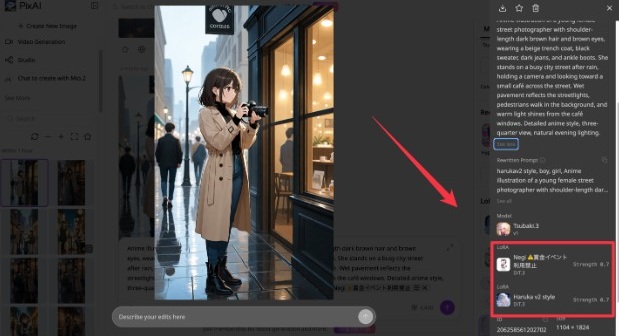
As you can see, the character’s visual style is different after using our LoRAs.
When evaluating the LoRAs available, here are some checks you can do:
Start with what you want the LoRA to change
First, identify the element you’re trying to add or strengthen. It might be a specific character, art style, outfit, hairstyle, or visual concept. A clear goal makes it easier to tell whether a LoRA is actually helping.
Check which model the LoRA was made for
LoRAs are designed to work with particular models or model families, so compatibility should be one of your first checks. A promising LoRA may still give poor results if you’re using it with a model it wasn’t designed to work with. It may also not be compatible and therefore unusable.
Look at the example images
The examples tell you much more about a LoRA than its name alone. Look at how consistently it produces the advertised character or style, what kinds of images it works with, and whether the results resemble the direction you’re aiming for.
Make sure it’s right for your character
When it’s time to choose an anime LoRA for a specific character, start with the features that make that character recognizable. Compare the LoRA’s example images for the face, hairstyle, eye color, clothing, and distinctive accessories. A LoRA might capture the face well while changing the outfit, or reproduce the clothing while giving the character a noticeably different appearance.
Also consider how you’ll use the character. If you need them in different poses, outfits, and settings, look for examples that show some variation. A LoRA that only produces one very specific look may be less useful for a character you’ll reuse throughout a story.
How to choose a reference image
A reference image is most useful when you need the generator to follow something visual that would be difficult to describe precisely in a prompt. That might be a character’s appearance, a particular outfit, a pose, or the overall composition of a scene.
The important part is choosing a reference that actually shows the thing you want to preserve. A beautiful image isn’t necessarily a useful reference if the relevant details are hidden, unclear, or surrounded by distracting elements.
Choose a reference that clearly shows what you want to preserve
If character appearance is the priority, use an image where the face, hair, clothing, and other defining features are clearly visible. If you’re trying to guide a pose or composition, choose an image that shows those elements clearly instead.
Match the reference to your goal
Think about what you want the model to take from the image. A character reference, pose reference, and composition reference can serve very different purposes. The closer the image matches that purpose, the more useful it is likely to be.
Don’t ask one reference to communicate everything
A single image may contain a character, a particular pose, a detailed environment, and a specific lighting setup. If you only want to preserve the character, all that additional information can make the reference less focused. Choose an image that gives the model the clearest visual signal for the part you care about.
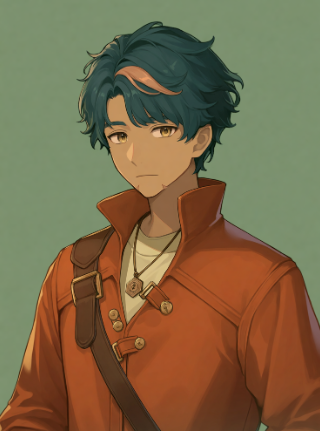
For example, the image below gives a clear idea of the character’s face and other characteristics.
Use a reference when words aren’t enough
Some visual details are simply easier to show than describe. If you’ve spent several lines trying to explain exactly how a character looks or how a particular design should be arranged, a suitable reference image may give the model a much clearer starting point.
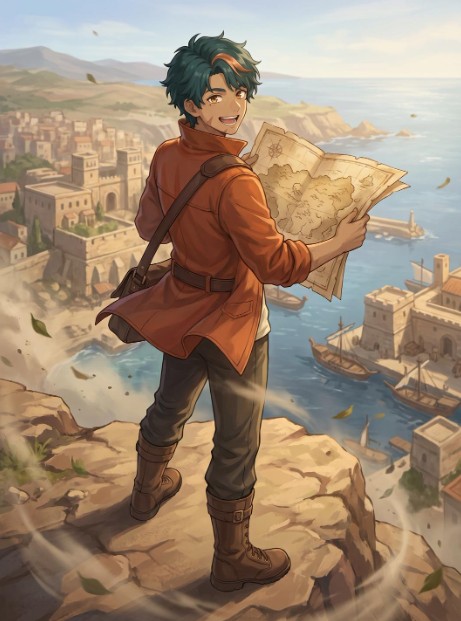
For example, let’s use PixAI’s Smart Reference to put our cartographer above and put him in a detailed scene.
Model vs LoRA vs reference: Which should you use?
Once you understand what each option controls, the choice becomes more practical. Start with the broadest control you need, then add something more specific only when there is a reason to.
When you should use a model alone
Use a model alone when it already gives you the visual style, character treatment, and level of detail you’re looking for. This keeps the workflow straightforward and gives you more room to adjust the prompt without introducing another variable. It may be all you need when you aren’t trying to reproduce something specific.
When a LoRA is worth adding
Add a LoRA when there is a particular element you want the model to reproduce more consistently. This could be a character, clothing style, visual effect, or other feature that the base model doesn’t capture reliably.
For example, if your model produces the right overall anime style but keeps missing a character’s distinctive hairstyle and outfit, a character LoRA can give you more targeted control without replacing the model you’ve already chosen. You can use one of the many community LoRAs available in PixAI or even train your own LoRA.
When a reference image is the better choice
A reference image makes more sense when you already have a visual you want the generation to follow. It’s especially useful when the important information is difficult to capture in words, such as the exact arrangement of a character’s features, a pose, or the relationship between several elements in a scene.
The three options can overlap, too. You might use a model for the overall style, a LoRA for a recurring character, and a reference to guide that character’s appearance in a particular scene.
The useful question is always what needs more control? Once you know that, the choice between model, LoRA, and reference becomes much clearer.
Recommended setup table
Below is a table you can use to decide what you need to use.
| What you want to achieve | Start with | Add if needed | Why |
| General anime illustration | Model | — | The model can handle the overall style, subject, and scene |
| A specific visual style | Model | Style LoRA | Adds more targeted influence over the look |
| A recurring character | Model | Character LoRA | Helps reproduce distinctive character features |
| An existing character design in a new scene | Model | Reference image | Gives the generation a visual example to follow |
| A specific pose or composition | Model | Reference image | Shows the model the arrangement you’re aiming for |
| A character with a particular style or design | Model | LoRA + reference | Combines targeted character control with visual guidance |
| A complex scene with several controlled elements | Model | LoRA and/or reference | Lets you address specific parts without relying entirely on the prompt |
Final thoughts
Choosing a model, LoRA, or reference image comes down to understanding what you want to control in the final image. The model establishes the overall foundation, a LoRA gives you more targeted influence, and a reference image gives the generator something visual to follow.
As your projects become more involved, you may find yourself combining all three. That’s especially useful for recurring characters and scenes where visual consistency matters. PixAI allows you to experiment with different combinations and adjust your setup as the project develops.
 11 Best Companies Offering Virtual CISO Solutions
 MICROLISE CYCLING TEAM GEARS UP FOR MALAWI
 The Future of Music Streaming Apps: Trends and Innovations
 Renovotec launches ‘warehouse power products’
 Rural Roads Are the UK’s Most Dangerous for Drivers, Not London, New Fleet Data Reveals
 International Identity Day: Managing today’s identity explosion