

High-tech workspaces push productivity high, but long hours facing monitors take a heavy toll on visual comfort.
Staring at bright screens, multi-display setups, and sharp LED backlights causes daily visual fatigue.
Many tech workers struggle with tired eyes, blurred vision, or dry sensations by mid-afternoon.
Creating a balanced workspace requires focused adjustments to protect your vision long-term.
Understanding Modern Screen Strain
Modern tech environments require constant visual focus across multiple screens. Continuous refocusing between code editors, chat tools, and documentation strains the eye muscles working behind the scenes. Complex software layouts demand precise tracking, which keeps visual systems working at peak capacity.
Staring at glowing glass surfaces differs significantly from reading traditional paper pages. Crisp pixels, glare reflections, and intense display brightness demand strong eye coordination for hours at a time. Without regular physical breaks, sustained visual stress leads to neck discomfort and severe eye fatigue.
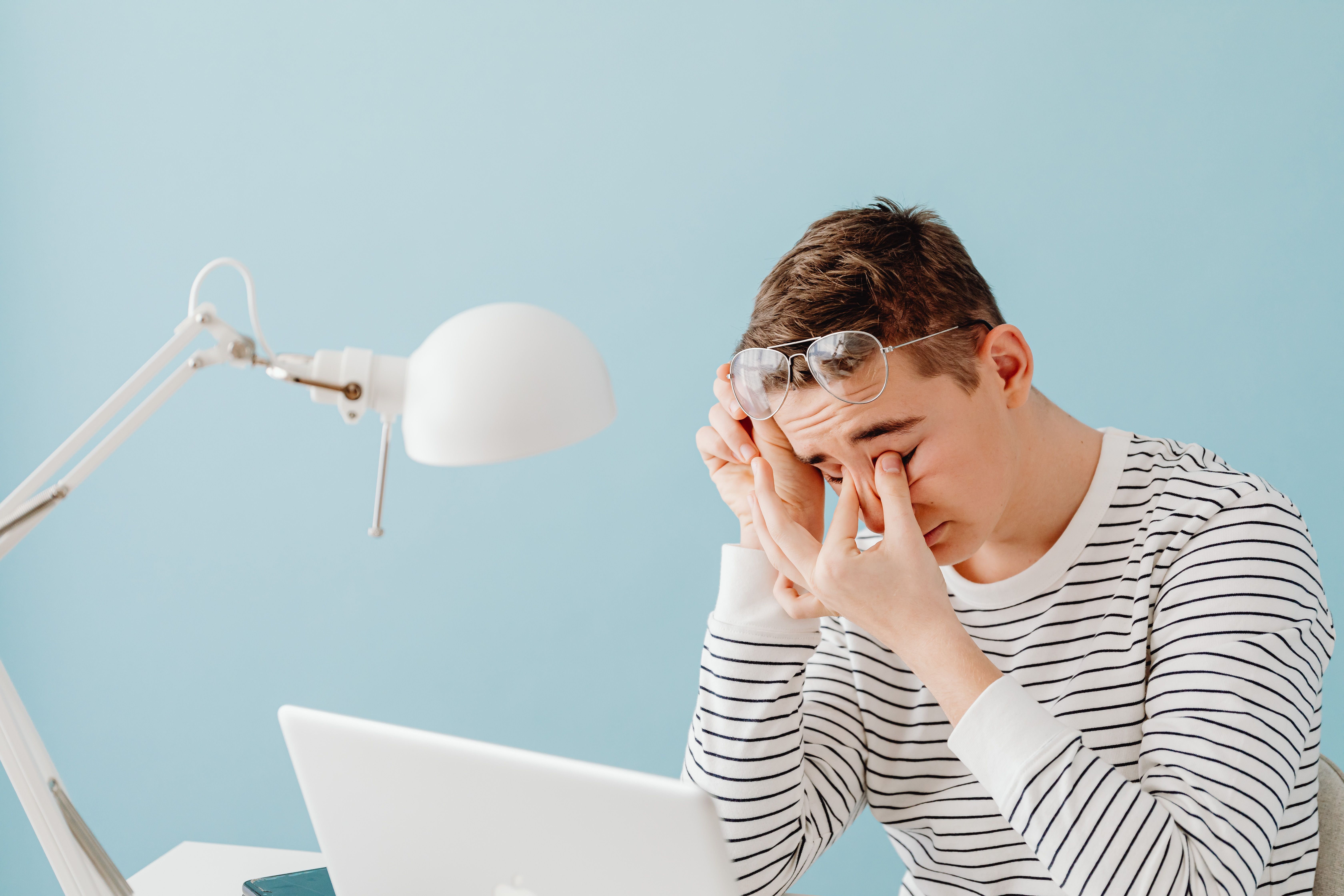
Minimizing Blue Light
Extended work sessions under harsh monitor illumination expose your eyes to short-wavelength light continuously. Smart office habits like managing blue light exposure help maintain day-long visual comfort during long coding runs. Setting up proper night filters on monitors softens bright screen edges.
Warm display settings lower color temperature during evening shifts. Reducing high-energy blue wavelengths creates a soothing screen profile without sacrificing crisp text clarity. Combining soft display tints with warm ambient room lights keeps your workspace visually comfortable late into the day.
Take breaks from the screen. That gives your eyes time to rest. Match your monitor brightness to the room. That helps if the screen is too bright. Keep the screen at a comfortable distance. That makes long coding sessions easier on your eyes. Make the text bigger. Then you can read code without leaning in. Small changes to your workspace can make long computer use more comfortable.
Recognizing Changes In Your Blink Rate
Concentrating on dense text or complex code naturally slows down physical eye movement. Medical guidelines note that people usually blink 15 times a minute, but screen focus cuts this rate in half. Infrequent blinking leaves the eye surface exposed to air, leading to dryness and irritation.
Deep focus on complex desktop tools creates sharp drops in natural moisture protection. Clinical findings show desk workers blink 5 to 7 times per minute when staring at computer monitors. Consciously refreshing your eyes during intensive tasks keeps the cornea coated and clear.
Blink fully to keep your eyes wet during long work sessions. Look away from the screen every few minutes. That gives your eyes a break from close-up focus. Some people put a note near their monitor to remember to blink. Keep fans away from your face. That stops air from drying your eyes. These simple habits make long screen time more comfortable.
Implementing Simple Rest Protocols
Short, scheduled breaks interrupt long periods of intense close-range focus. Optometry experts advise taking a 20-second break every 20 minutes to look at an object 20 feet away. This periodic distance gazing relaxes internal eye muscles that lock up during near work.
Setting subtle timer alerts keeps rest schedules consistent throughout busy workdays. Stepping away from screen devices during lunch breaks offers full recovery time. Taking brief physical walks encourages spontaneous blinking and muscle relaxation.
Changing what you look at during breaks helps your eyes. It reduces strain from staring at one distance. Look at things close and far away. That lets your eyes adjust. Short breaks are easier to fit into a busy day. Stand up and stretch your neck and shoulders. That helps even more. Do these simple habits every workday. They make long screen time easier to handle.
Optimizing Workspace Lighting Setup
Ambient lighting conditions influence screen clarity and general eye comfort. Overhead fluorescent tubes create glare reflections across glass monitor surfaces. Poor contrast forces your eyes to work harder just to read basic text.
Positioning desk light sources carefully reduces competing glare spots. Physical setup adjustments include:
- Placing screens perpendicular to nearby windows
- Using indirect warm desk lamps instead of direct overhead lights
- Adding anti-glare monitor hoods in bright office rooms
Proper room lighting balances background illumination with monitor output, reducing overall eye strain.

Adjusting Digital Display Parameters
Default screen settings rarely fit high-performance work routines. Matching monitor brightness with ambient room light prevents harsh contrast shocks. Displays that shine brighter than surrounding room light force your pupils to constrict constantly.
Increasing text size reduces the physical effort needed to read small code lines or spreadsheet numbers. Scaling display fonts upward keeps scanning effortless through long shifts. High-contrast color themes with dark backgrounds or soft gray modes ease visual demands.
Small ergonomic adjustments yield large improvements in daily workplace comfort. Building healthy screen habits protects your visual wellness and keeps productivity high. Pay attention to early signs of eye fatigue, adjust your setup, and give your vision room to rest each day.
 StayLinked revolutionises warehouse opps for TRIO Leuchten
 Why More Families Are Now Turning to In-Home Care for Parents
 Descartes Launches pixi* E-commerce WMS for Automated In-house and Warehouse Logistics Processes
 Digital-Era Supply Chains: What Real Resilience Looks Like
 COVID-19: Impact on Oil and Gas Industry and Supply Chain
 What the new cyber security Bill will mean for businesses moving forward